%20(500%20x%20162%20px)(1).png)
External CA
Introduction

Create CA Hierarchy Lab Overview - PART 3, Create the External Subordinate CA
Slide Deck: Create CA Hierarchy
Overview: This lab is used to create our EJBCA PKI Hierarchy lab environment, which will be used throughout this course.
The Create CA Hierarchy consists of three parts; creating a Root CA, a Subordinate CA, and an External Subordinate CA.
The third part of this lab focuses on creating the External Subordinate CA. This section is very similar to creating the Root CA, and Subordinate however there are some extra steps since we are simulating the External Subordinate CA which will be signed by the Root CA.
This section is divided into two parts where the first part is on the Root CA and the second part should be on the External CA. The External Sub CA, will be configured as if it was existing on a separate EJBCA instance (could exist in a separate organization or across the world). Although we don't have a separate instance setup for this lab, we will simulate this, by executing the steps as if the External Sub CA existed on a separate instance. As only one EJBCA instance is used in this training everything is performed on the same EJBCA installation, but we will try to make it a little bit clearer by informing which CA would have been used if there were one Root CA and one External CA.
Clone the SUB CA certificate profile, which is provided as a template with EJBCA, and make modifications required for the lab environment i.e. select key algorithm, and key length etc.
Create an End-Entity profile for the External Sub CA.
Download the Root CA certificate to include with the External Sub CA Certificate Signing Request (CSR).
Create a Crypto Token which allows EJBCA to access the External Subordinate CA keys.
Create the External Subordinate CA, by making modifications specific for the External Subordinate CA, adding any asserted information, i.e. DN of the CA, assign the crypto keys to their usage, and configure CRL validity periods. Also during this step, the signed CSR will be imported back into the External Sub CA during creation.
Slide Reference
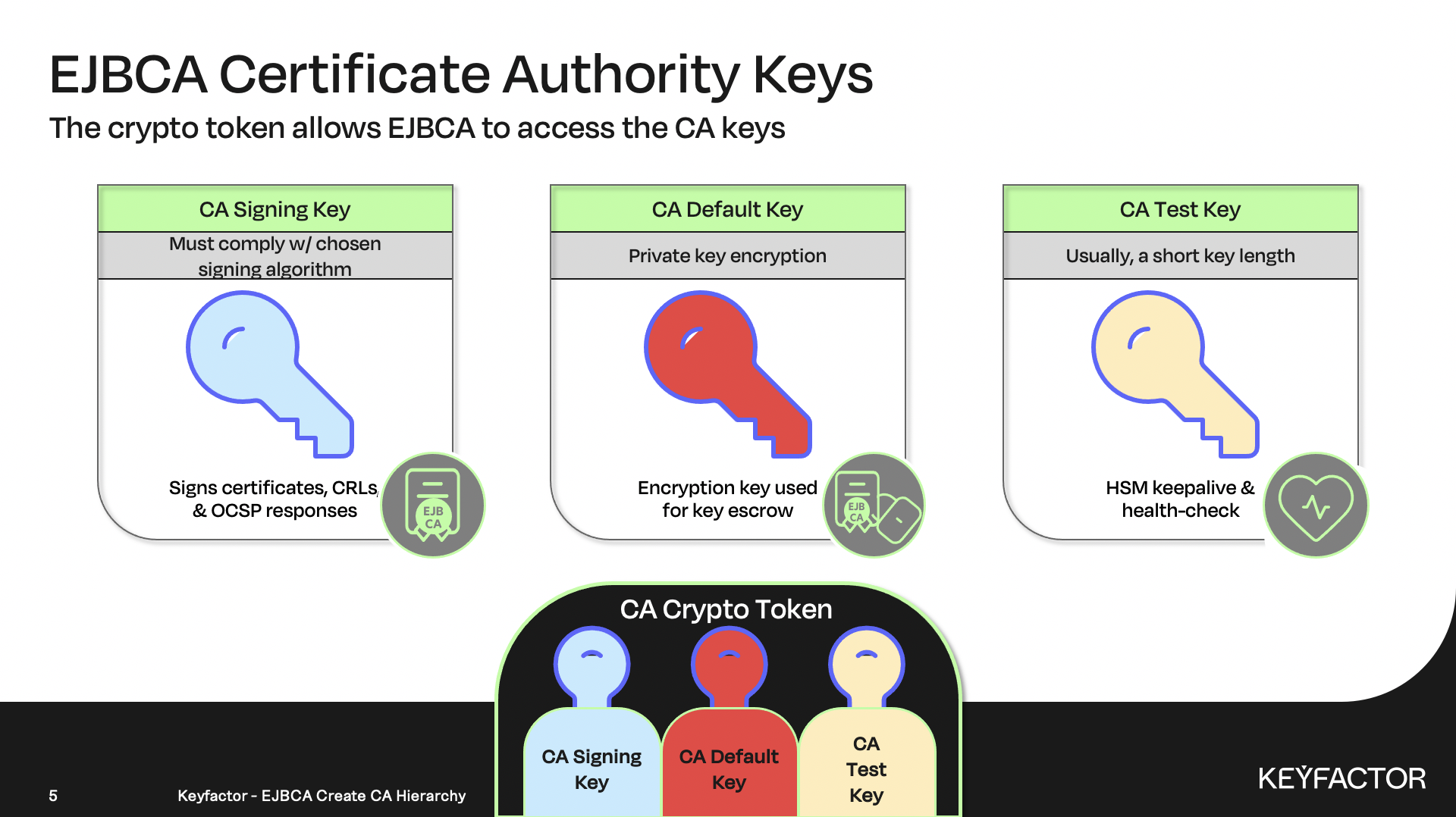
Create the crypto token first
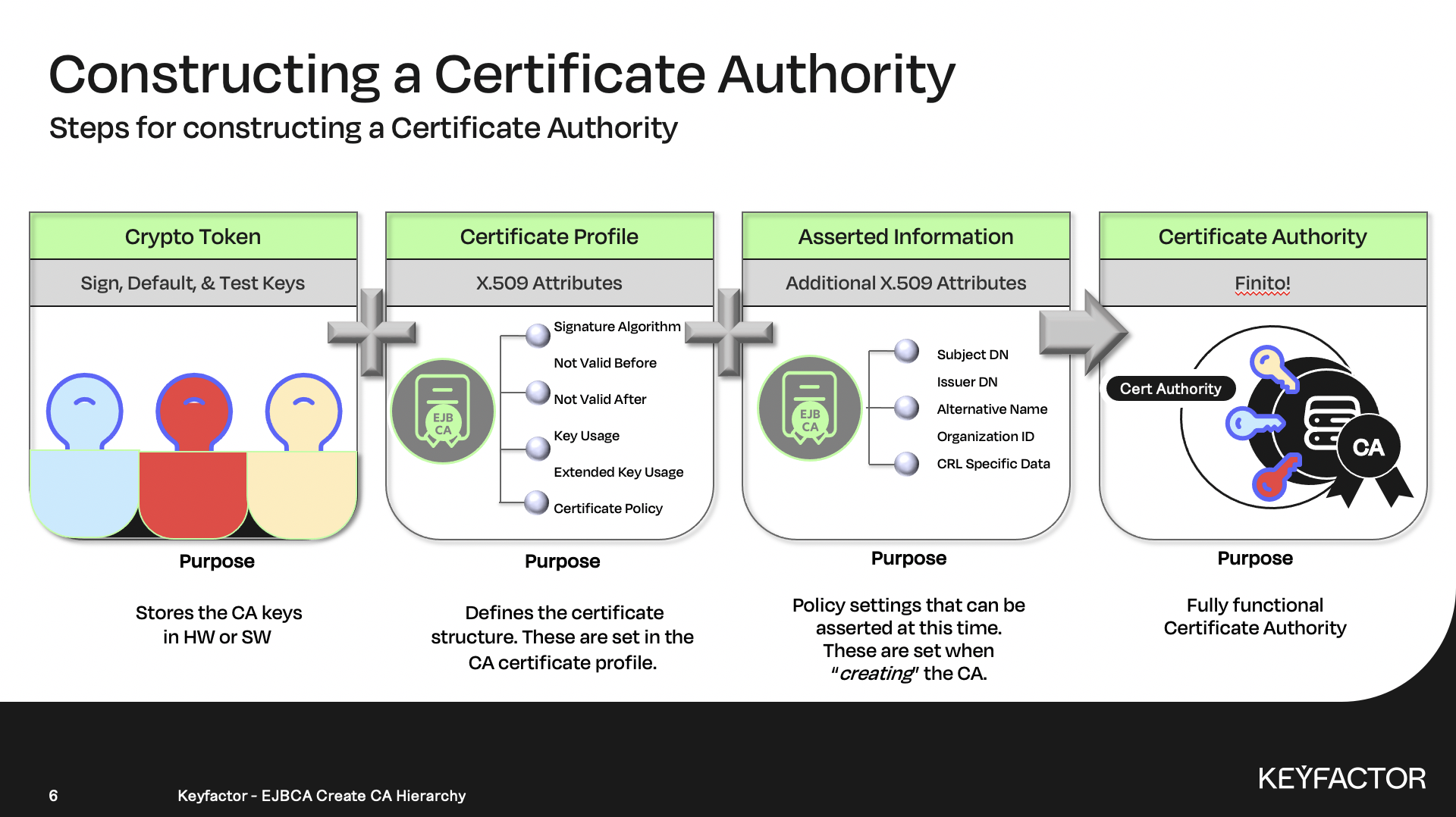
Next create the certificate authority
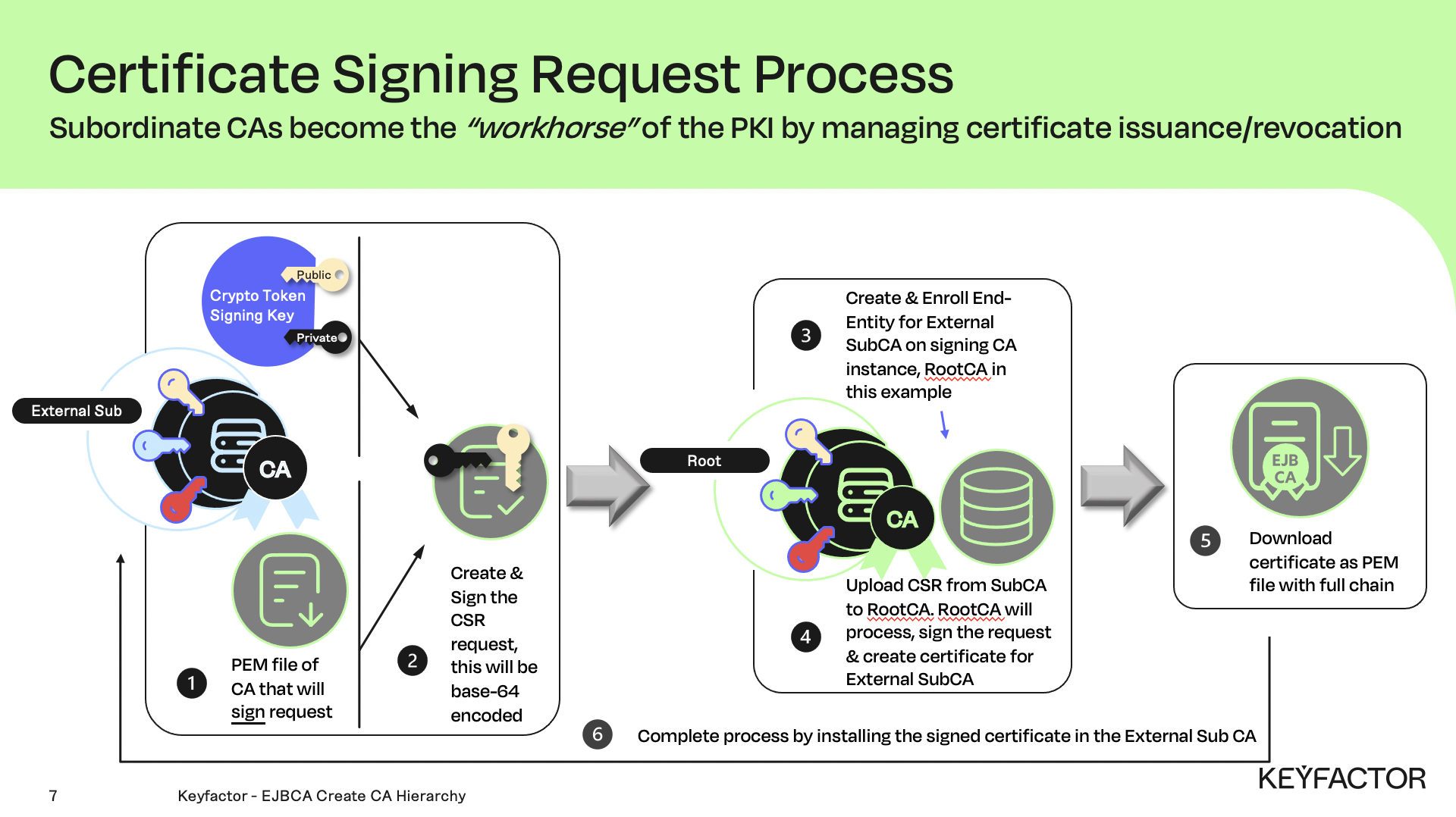
External CA signed by the Root CA
The following steps are performed on the Root CA
Reminder: This is on the same instance since we do not have multiple instances of EJBCA for this lab
Create External Subordinate CA Certificate Profile on the Root CA
Click CA Functions >> Certificate Profiles
On SUBCA click Clone
Enter ExternalSubCACertificateProfile and click Create from template
Click Edit on the profile ExternalSubCACertificateProfile
In the Available key algorithms list, select RSA
In the Available bit lengths list, select 4096 bits
In the Signature Algorithm list, select SHA256WithRSA
In the Validity field, enter 10y 3mo
For Path Length Constraint check Add… and set the Value field to 0
For Certificate Policies check Use...
In the Certificate Policy OID field, enter 2.5.29.32.0 (or insert your organization OID) and click Add
Uncheck the Subject Alternative Name Use... checkbox
Uncheck the Issuer Alternative Name Use... checkbox
Uncheck the checkbox for LDAP DN Order
In the Available CAs list, select Root CA
Keep the other values as default
Click Save
Create External Subordinate CA End Entity Profile on the Root CA
Click RA Functions >> End Entity Profiles
In the Add End Entity Profile field, enter ExternalSubCAEndEntityProfile and click Add Profile
In the List of End Entity Profiles list, select ExternalSubCAEndEntityProfile and click Edit End Entity Profile
For End Entity E-mail deselect Use
In the Subject DN Attributes list select O, Organization and click Add
In the O, Organization field
Enter the text PrimeKey Solutions AB
Select Required
Deselect Modifiable
In the Subject DN Attributes list, select C, Country (ISO 3166) and click Add
In the C, Country (ISO 3166) field
Enter the text SE
Select Required
Deselect Modifiable
Scroll to the Main Certificate Data section, and locate the Default Certificate Profile list, select ExternalSubCACertificateProfile
In the Available Certificate Profiles list, select ExternalSubCACertificateProfile
In the Default CA list, select Root CA
In the Available CAs list, select Root CA
In the Default Token list, select User Generated
In the Available Tokens list, select User Generated
Click Save
Download Root CA Certificate
Click CA Functions >> CA Structure & CRLs
For Root CA click Download PEM file
Save the file, Firefox will save all downloads to the user's downloads directory.

The following steps are performed on the External CA
Reminder: This is on the same instance since we do not have multiple instances of EJBCA for this lab
Create Crypto Token on the External Subordinate CA
Click CA Functions >> Crypto Tokens
Click Create new
In the Name field, enter externalsubcacryptotoken
In the Type list, select PKCS#11 NG
Click the Auto Activation checkbox, to enable the crypto-token to auto-activate
In the PKCS#11 Reference Type list, select Slot/Token Label
In the PKCS#11 Reference list, select EXTERNAL_SUB_CA_SLOT
In the Authentication Code field, enter the password for the slot (password on the training system is foo123)
In the Repeat Authentication Code field, re-enter the password from previous step
Click Save
Enter signKey00001 as the name for the new key, choose RSA 4096 from the list, select Sign/Encrypt for key usage and click Generate new key pair
Click Test for the new key created, the result should be signKey00001 tested successfully
Enter defaultKey00001 as the name for the new key, choose RSA 4096 from the list, select Sign/Encrypt for key usage and click Generate new key pair
Click Test for the new key created, the result should be defaultKey00001 tested successful
Enter testKey as the name for the new key, choose RSA 1024 from the list, select Sign/Encrypt for key usage and click Generate new key pair
Click Test for the new key created, the result should be testKey tested successfully
Create External Subordinate CA
Click CA Functions >> Certification Authorities
In the Add CA field, enter External Sub CA and click Create
In the Crypto Token list, select externalsubcacryptotoken
In the defaultKey list, select defaultKey00001
In the certSignKey list, select signKey00001
In the testKey list, select testKey
In the Subject DN field, enter CN=External Sub CA,O=PrimeKey Solutions AB,C=SE
In the Signed By list, select External CA
Uncheck the checkbox for LDAP DN Order
In the CRL Expire Period field, enter 2d
In the CRL Issue Interval field, enter 1d
In the CRL Overlap Time field, enter 0m
In the Monitor if CA active (healthcheck), check Activate
From Externally signed CA creation/renewal click Browse, click Downloads and select RootCA.cacert.pem
Click Make Certificate Request
Click Download PEM file
Save the file
The following steps are performed on the Root CA
Reminder: This is on the same instance since we do not have multiple instances of EJBCA for this lab
Open a browser and go to the Admin Web on the Root CA
Click RA Functions >> Add End Entity
In the End Entity Profile list, select ExternalSubCAEndEntityProfile
In the Username field, enter External Sub CA
In the Password field, enter the password for the slot (password on the training system is foo123)
In the Confirm Password field, repeat the password
In the CN, Common name field, enter External Sub CA
In the Certificate Profile list, select ExternalSubCACertificateProfile
In the CA list, select Root CA
In the Token list, select User Generated
Click Add
Click RA Web, from the ribbon menu across the top of page
Select Enroll >> Use Username
If you can't see the Enroll menu then click the hamburger menu in the upper right corner
In the Username field, enter External Sub CA
In the Enrollment code field, enter the password from step 22
Click Check
Click Browse… click Downloads, select External Sub CA_csr.pem click select
Click Download PEM full chain
Save the file as "External Sub CA.pem"
The following steps are performed on the External CA
Reminder: This is on the same instance since we do not have multiple instances of EJBCA for this lab
Open a browser and go to the Admin Web on the External Subordinate CA
Click CA Functions >> Certification Authorities
In the List of Certification Authorities the list, select External Sub CA
Click Edit CA
For Externally signed CA creation/renewal, Step 2 - Import Certificate click Browse
Click Downloads
Select External Sub CA.pem click select
Click Receive Certificate Response
The result should be Certificate Response received successfully, CA Activated

? Question and Answers ?