%20(500%20x%20162%20px)(1).png)
ACME
Introduction

Integration - Automated Certificate Management Environment (ACME) API
Slide Deck: Integration
Overview: The goal of ACME training is to learn how to issue and revoke TLS server certificates using the ACME protocol.
ACME is used to generate certificate(s) for Web Servers. In this lab we will issue a certificate for our server, and the second part of the lab will use ACME to revoke the certificate.
Slide Reference
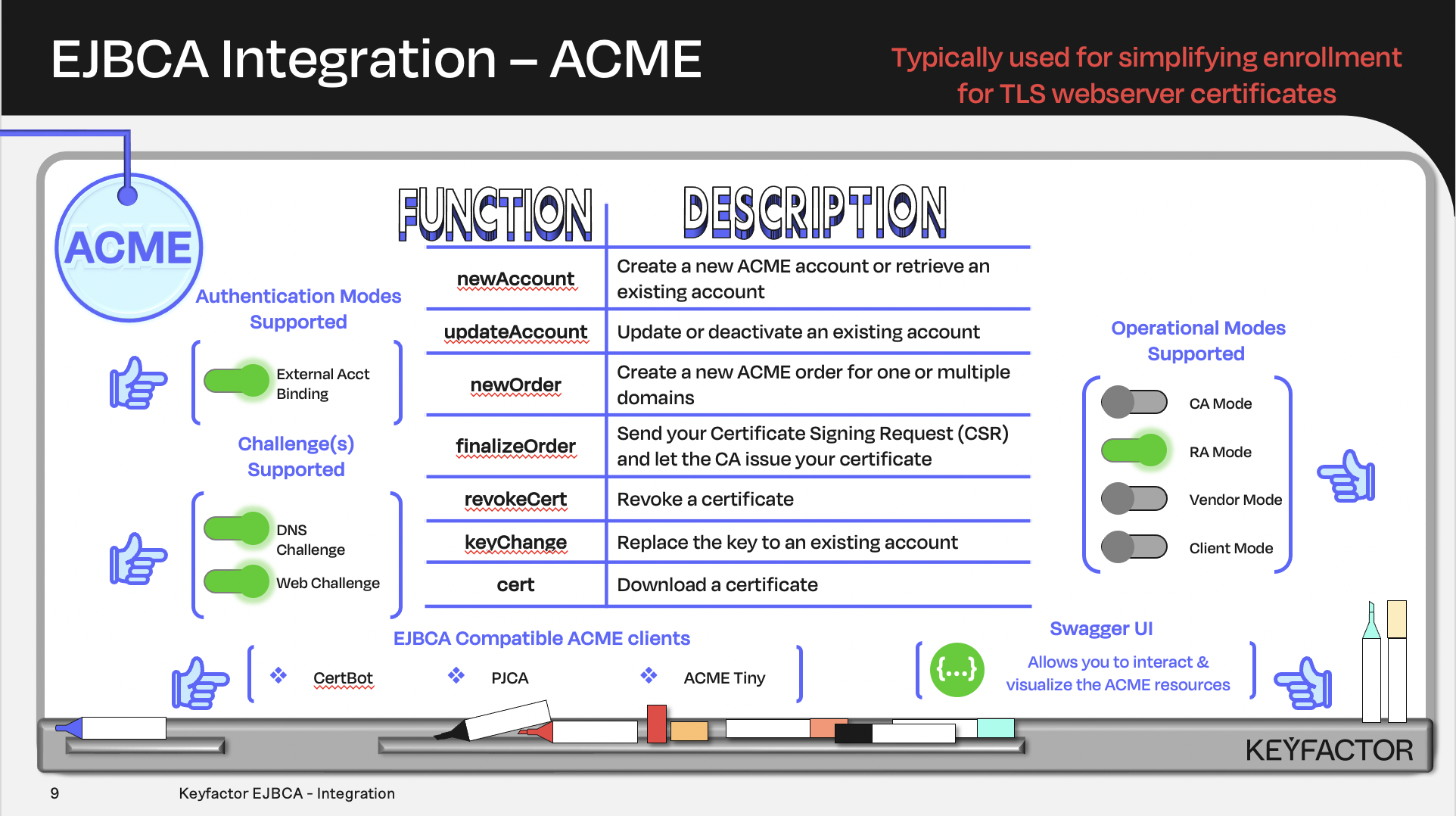
Certificate and CA operations available using Automated Certificate Management Environment (ACME)
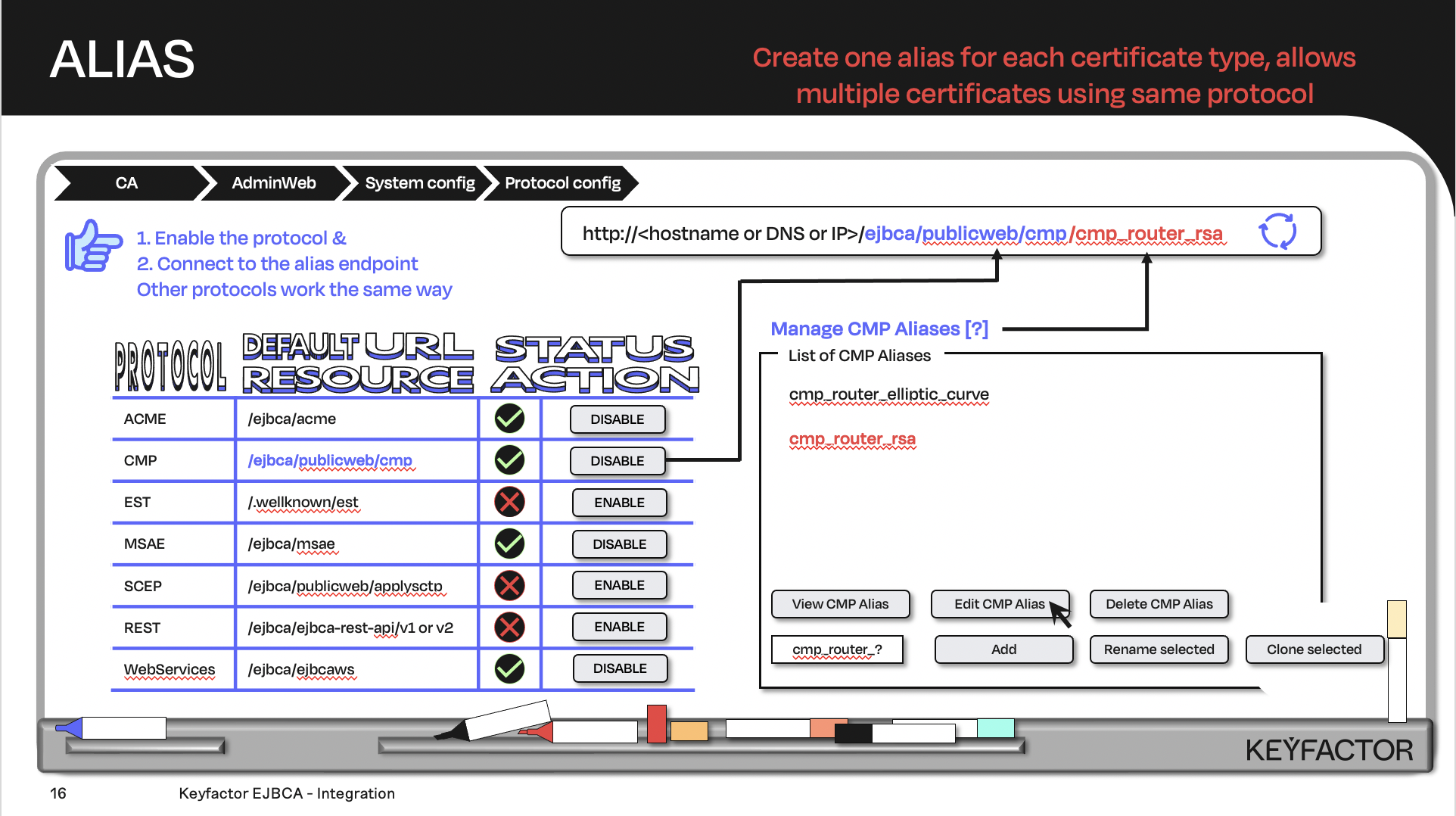
Create the URL with the default URL resource + the protocol alias; the client will contact the URL
Reminder you can visit the Accessing Your Environment page for details on how to connect to your Admin Web portal
Create a Certificate Profile for ACME
Click on CA Functions >> Certificate Profiles
Click on Clone to clone the TLSServerCertificateProfile certificate profile
Type in KF-ACME-RSA2k as the name of the certificate profile and click on Create from template
Click on Edit to edit the KF-ACME-RSA2k certificate profile
Select Sub CA in the list of Available CAs
Click on Save
Create an End Entity Profile for ACME
Click on RA Functions >> End Entity Profiles
Fill in KF-ACME-RSA2k as the profile name and click on Add profile
Select KF-ACME-RSA2k in the list of end entity profiles and click on Edit End Entity Profile
In the Batch generation (clear text pwd storage) field, enable the Use check box
Next to End Entity E-mail, click the Required checkbox
In the Subject DN Attributes list, select O, Organization and click Add
In the O, Organization field:
Enter the text PrimeKey Solutions AB
Select Required
Deselect Modifiable
In the Subject DN Attributes list, select C, Country (ISO 3166) and click Add
In the C, Country (ISO 3166) field:
Enter the text SE
Select Required
Deselect Modifiable
In the Subject Alternative Name drop-down, select DNS Name and click on Add
Enable Required
Choose KF-ACME-RSA2k as Default Certificate Profile
Select KF-ACME-RSA2k in the list of Available Certificate Profiles
Choose Sub CA as Default CA
Choose Sub CA in the list of Available CAs
Choose User Generated in the list of Available Tokens
Click on Save
Create an ACME Alias
Click on System Configuration >> ACME Configuration
Click on Add to add a new alias
Enter rsa2k as the name of the alias
Enable the DN radio button for the RA Name Generation Scheme
Choose the end entity profile KF-ACME-RSA2k
Disable the Validate DNSSEC checkbox, by unchecking the box
Click on Save to close the ACME alias
Click on Save under the Global ACME Configurations
Enable the ACME Protocol
Click on System Configuration >> System Configuration
Click on the Protocol Configuration tab
Click on Enable for the ACME protocol
Certbot
We will use Certbot as an ACME client. This software has been loaded on your CLIENT instance already.
Issue a Certificate
Reminder you can visit the Accessing Your Environment page for details on how to connect to connect via SSH
Open up the TERMINAL application and cd to sysadmin home directory.
cd ~Create a configuration file for OpenSSL, copy the information shown here into your acmecsr.conf file.
vim acmecsr.confacmecsr.conf
[ req ]
default_bits = 2048
distinguished_name = req_distinguished_name
req_extensions = req_ext
prompt = no

[ req_distinguished_name ]
countryName = SE
organizationName = PrimeKey Solutions AB
# The commonname is the name of the server you are requesting a certificate for
commonName = client.keyfactor.training

[ req_ext ]
subjectAltName = @alt_names

[alt_names]
# The DNS name is an additional name of the server you are requesting a certificate for
DNS.1 = client.keyfactor.training
Save and close the file :wq!
Create a CSR using OpenSSL
openssl req -new -config acmecsr.conf -newkey rsa:2048 -nodes -keyout localhost.key -out localhost.csrIssue a certificate using Certbot. This will create a new ACME account and start a webserver on port 80 to prove control over the domain. There may be some python warnings generated at this time, these can be ignored.
sudo certbot certonly --standalone --no-verify-ssl --csr localhost.csr --agree-tos --no-eff-email --email training@keyfactor.com \
--server https://ca.keyfactor.training/ejbca/acme/rsa2k/directory Explanation of parameters:
--standalone - run a standalone webserver for authentication
--no-verify-ssl - explicit trust the TLS connection to ca.primekey.training
--csr - name of the csr file created above
--agree-tos - Agree to the Terms of Service of the ACME server enrolling from
-no-eff-email - Do not share your email with EFF
--email - email address to contact
--server - contact the CA located at: https://ca.keyfactor.training/ejbca/acme/directory
RESULTS
Successfully received certificate.
Certificate is saved at: /home/sysadmin/0000_cert.pem
Intermediate CA chain is saved at: /home/sysadmin/0000_chain.pem
Full certificate chain is saved at: /home/sysadmin/0001_chain.pem
This certificate expires on 2027-05-08.
NEXT STEPS:
- Certificates created using --csr will not be renewed automatically by Certbot. You will need to renew the certificate before it expires, by running th esame Certbot command again.
Inspect the certificate
openssl x509 -in 0000_cert.pem -noout -textYou will see something similar returned after running the last command.
Certificate:
    Data:
        Version: 3 (0x2)
        Serial Number:
            41:5c:79:87:76:d7:97:36:67:4a:23:c2:09:49:cd:83:cf:73:c7:91
    Signature Algorithm: sha256WithRSAEncryption
        Issuer: C=SE, O=PrimeKey Solutions AB, CN=Sub CA
        Validity
            Not Before: Sep 28 20:46:15 2025 GMT
            Not After : Sep 27 20:46:14 2027 GMT
        Subject: C=SE, O=PrimeKey Solutions AB, CN=client.keyfactor.training
        Subject Public Key Info:
            Public Key Algorithm: rsaEncryption
                Public-Key: (2048 bit)
                Modulus:
                    00:a6:ba:2e:79:01:bb:25:96:86:a9:b3:18:a5:4d:
                    f5:00:a4:9f:87:73:30:1d:d6:f8:a3:f4:82:fd:6b:
                    bd:99:74:25:37:02:18:9f:30:72:5d:8f:a2:8f:d0:
                    c4:69:8f:5c:6b:b9:52:be:f2:38:e6:53:dc:15:fe:
                    ...
Revoke the Certificate
Revoke the certificate as compromised, if prompted answer NO to delete the certificate.
sudo certbot revoke --no-verify-ssl --reason keycompromise --server https://ca.keyfactor.training/ejbca/acme/rsa2k/directory --cert-path 0000_cert.pem --no-delete-after-revokeRESULTS:
There may be some python warnings generated at this time, these can be ignored.
Congratulations! You have successfully revoked the certificate that was located at /home/sysadmin/0000_cert.pem
? Question and Answers ?