%20(500%20x%20162%20px)(1).png)
Client Certificate Profile (TLS Sample)
Introduction

EJBCA Profiles, Creating certificate & end-entity profiles
Slide Deck: EJBCA Profiles
Overview: This section creates a TLS client certificate & TLS end-entity profile that has 3 key usages: Digital Signature, Key Encipherment, and Client Authentication. This type of certificate will allow digital signing, encrypting data, and authenticating to a VPN for instance.
Slide Reference
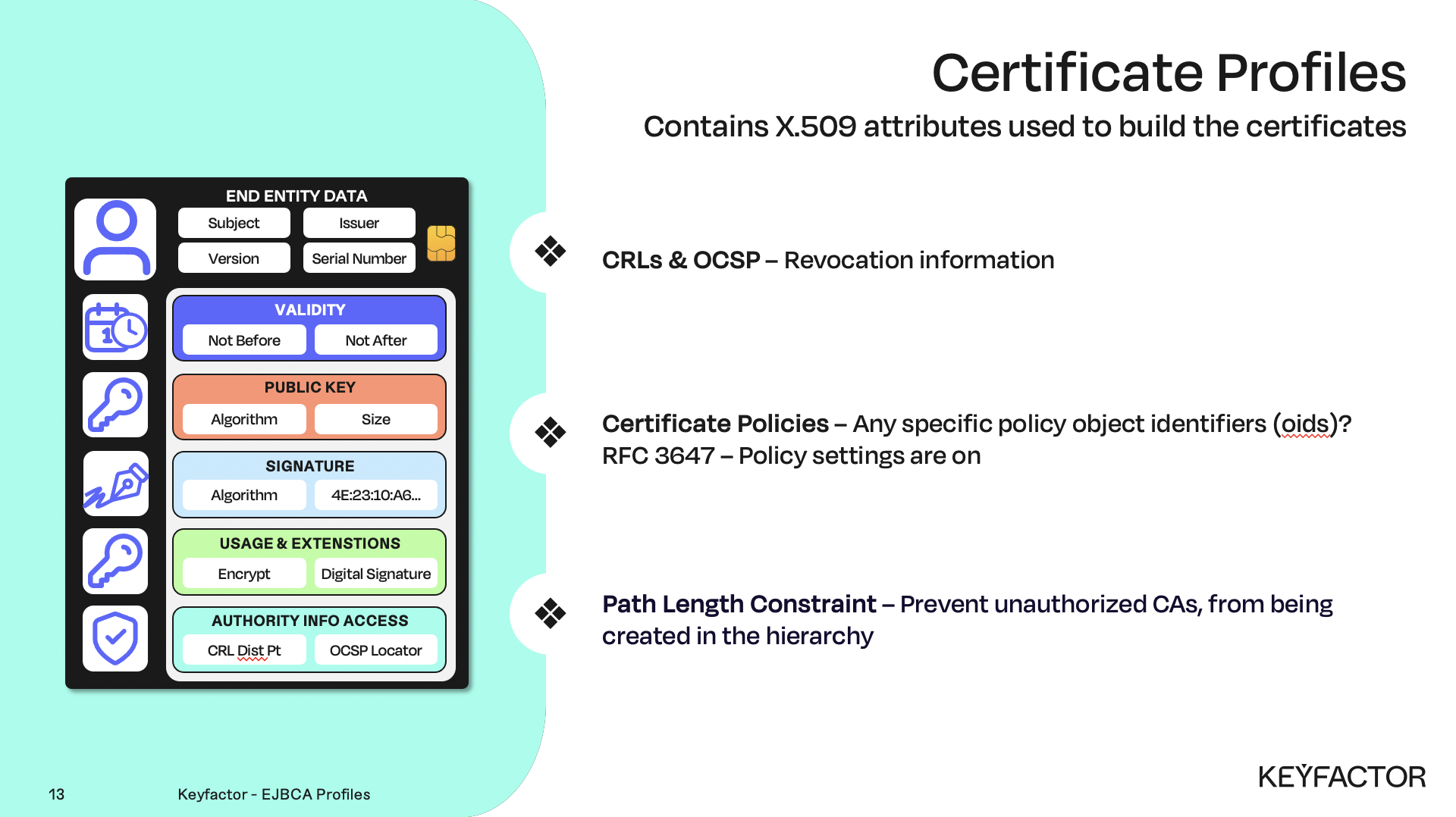
Certificate profile properties
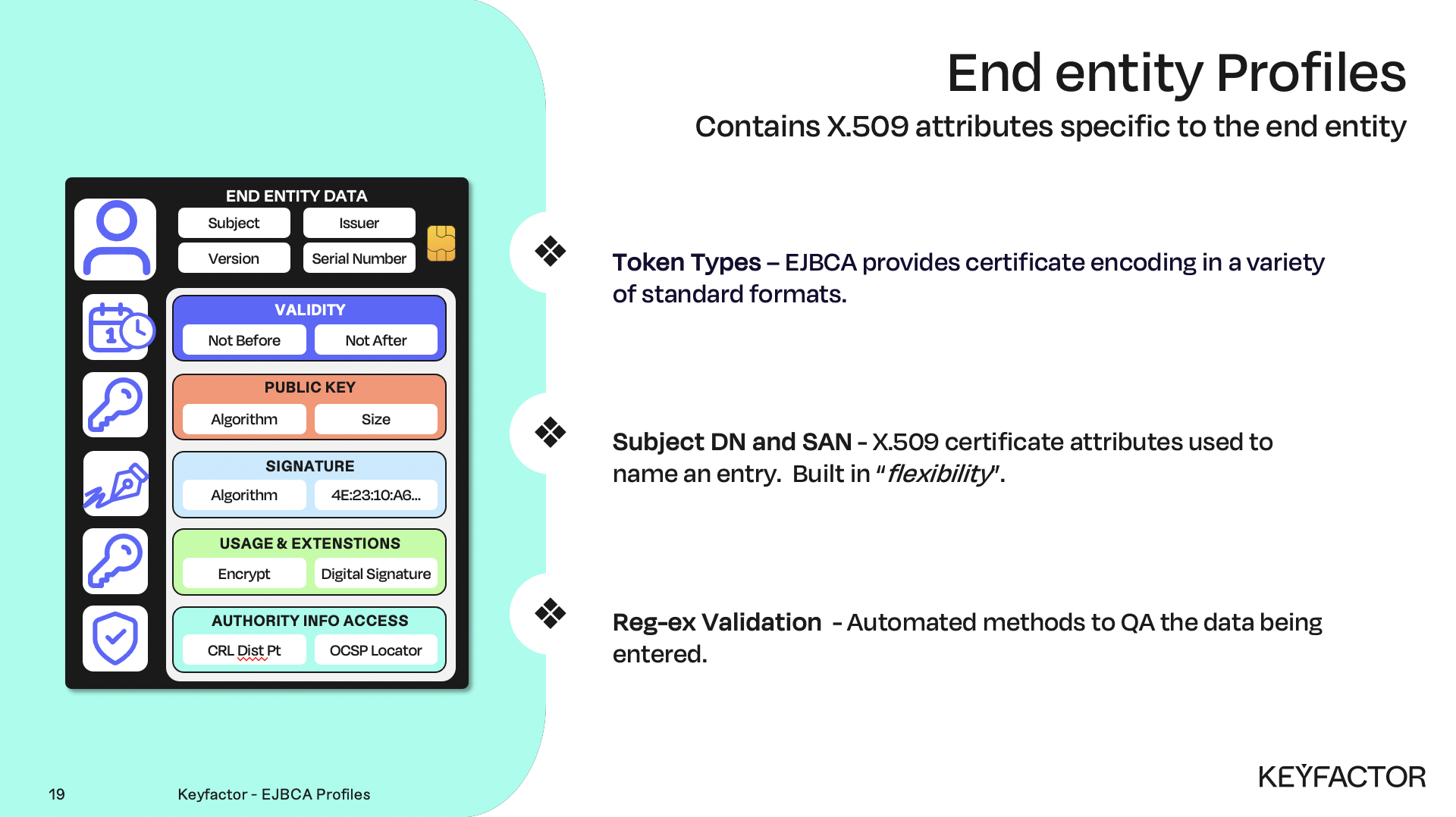
End entity profile properties
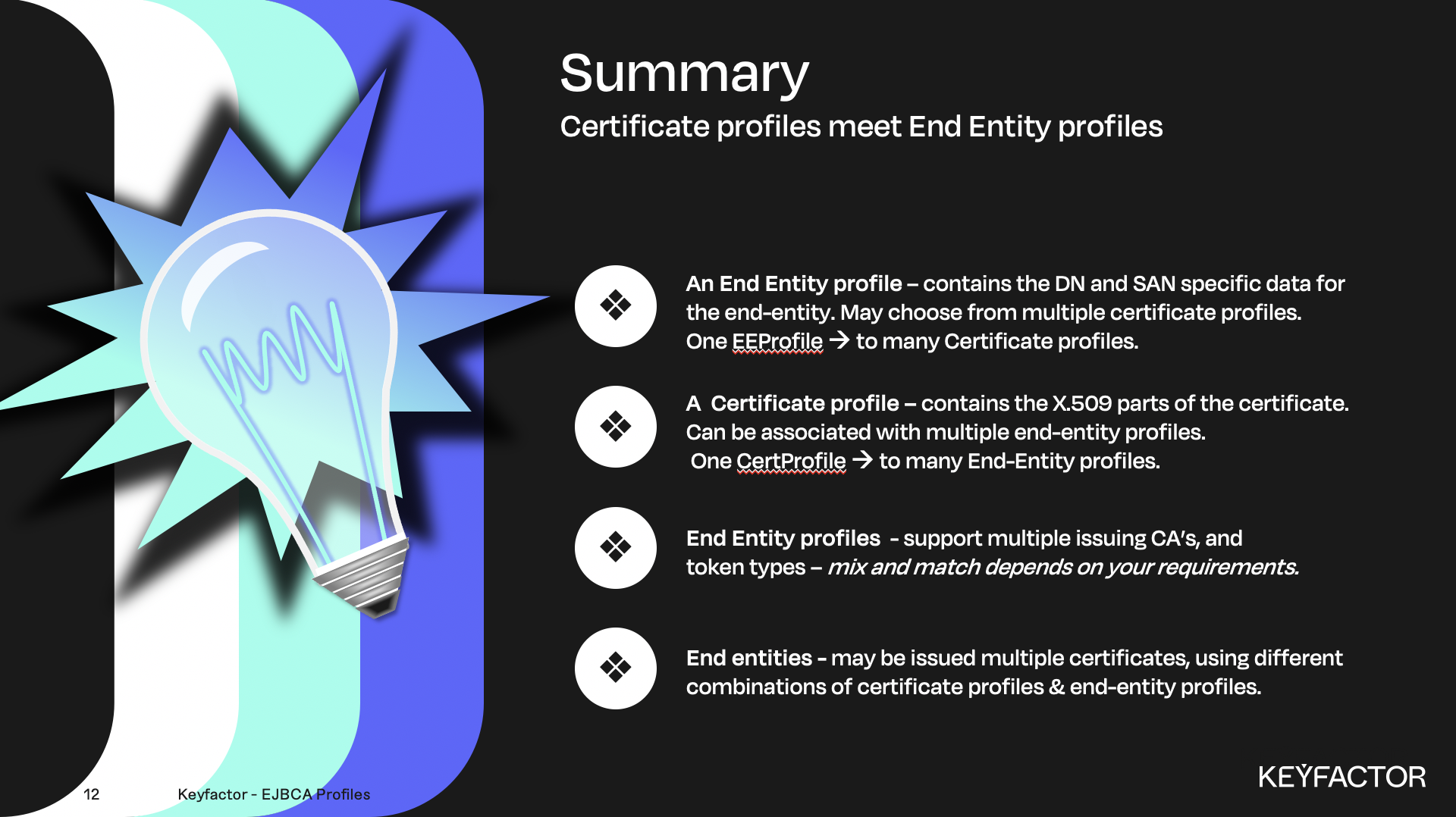
Both profiles are needed to issue a certificate
Reminder you can visit the Accessing Your Environment page for details on how to connect to your Admin web portal
Creating a Certificate Profile for TLS Client Certificates
Open a browser and access your Admin Web Portal
Click CA Functions >> Certificate Profiles
On ENDUSER click Clone
Enter TLSClientCertificateProfile and click Create from template
Click Edit on the profile TLSClientCertificateProfile
In the Available key algorithms list, select RSA
In the Available bit lengths list, select 2048 bits
In the Signature Algorithm list, select SHA256WithRSA
In the Validity field, enter 2y
For Key Usage make sure that only Digital Signature and Key Encipherment are selected
For Extended Key Usage select Client Authentication
In the Available CAs list, select ManagementCA and Sub CA
Click Save
Creating an End Entity Profile for TLS Client Certificates
Open a browser and access your Admin Web Portal
Click RA Functions >> End Entity Profiles
In the Add End Entity Profile field, enter TLSClientEndEntityProfile and click Add Profile
Select TLSClientEndEntityProfile and click Edit End Entity Profile
For End Entity E-mail deselect the check box
In the Subject DN Attributes list, select O, Organization and click Add
In the O, Organization field:
Enter the text PrimeKey Solutions AB
Select Required
Deselect Modifiable
In the Subject DN Attributes list, select C, Country (ISO 3166) and click Add
In the C, Country (ISO 3166) field:
Enter the text SE
Select Required
Deselect Modifiable
In the Default Certificate Profile list, select TLSClientCertificateProfile
In the Available Certificate Profiles list, select TLSClientCertificateProfile
In the Default CA list, select Sub CA
In the Available CAs list, select ManagementCA and Sub CA
In the Default Token list, select P12 file
In the Available Tokens list, select User Generated, P12 file, BCKFS file, JKS file, and PEM file
Click Save