%20(500%20x%20162%20px)(1).png)
Accumulative Approval Workflow
The ACCUMULATIVE approval workflow is described in the following steps:
Introduction

EJBCA Approvals
Slide Deck: EJBCA Approvals
Overview: The ACCUMULATIVE workflow shown here is the simplest of the two workflows. This type of workflow allows you to set up more than 1 person to approve a certificate operation.
In this lab, you will create an Accumulative workflow, and obtain "sign off" on the creation of a certificate from two administrators.
Slide Reference
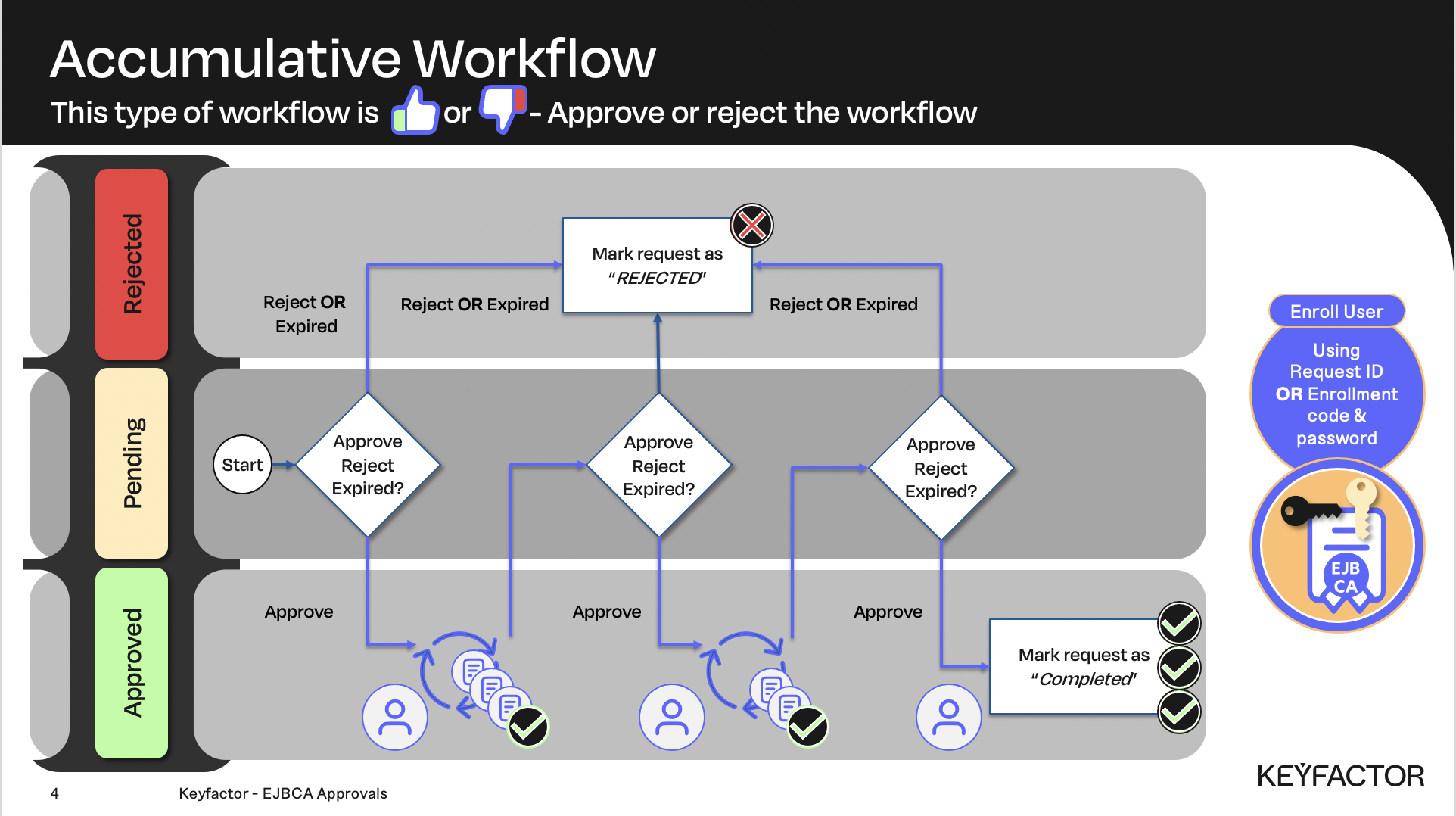
This type of workflow is APPROVE or REJECT
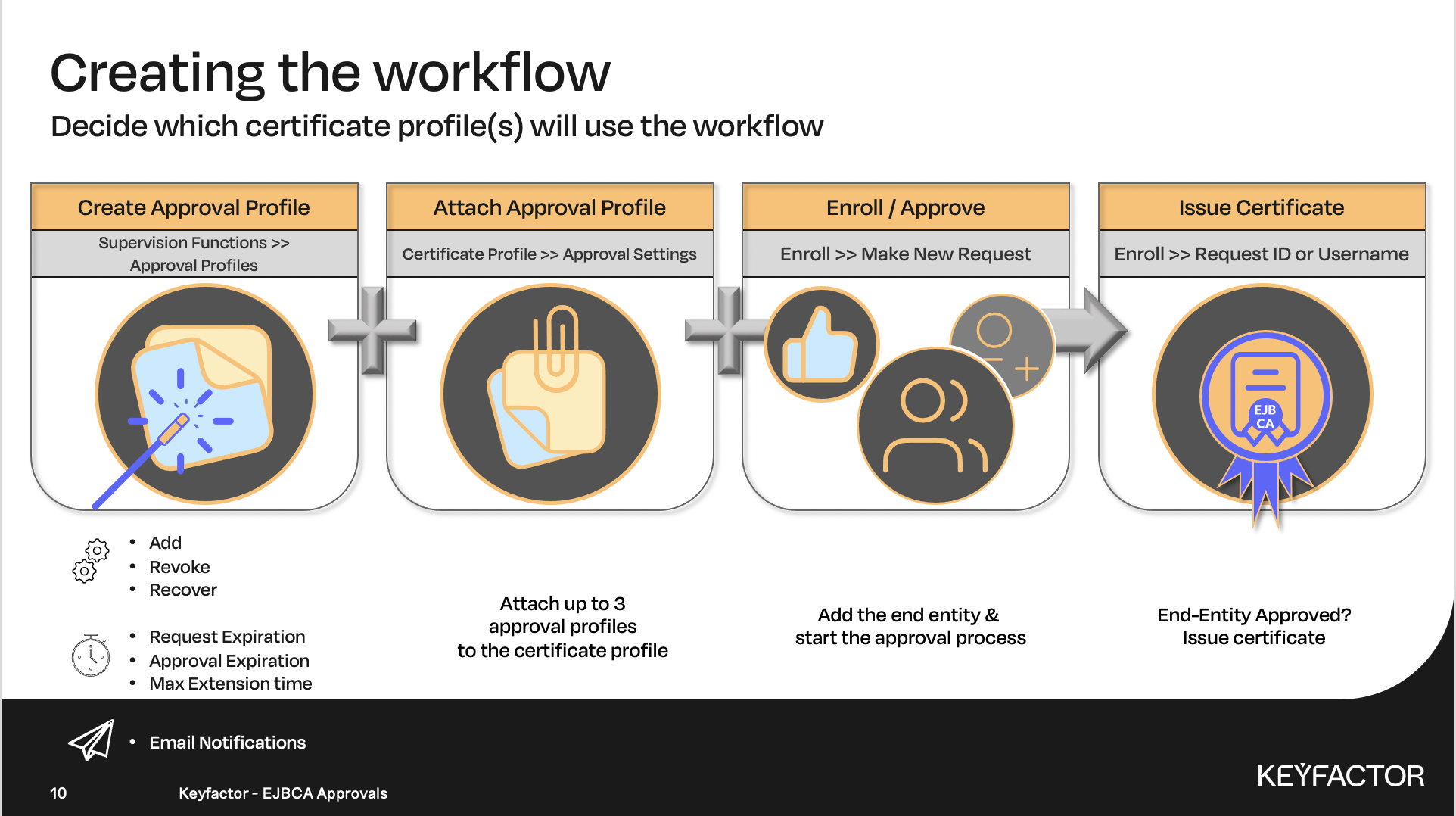
Approval workflow steps
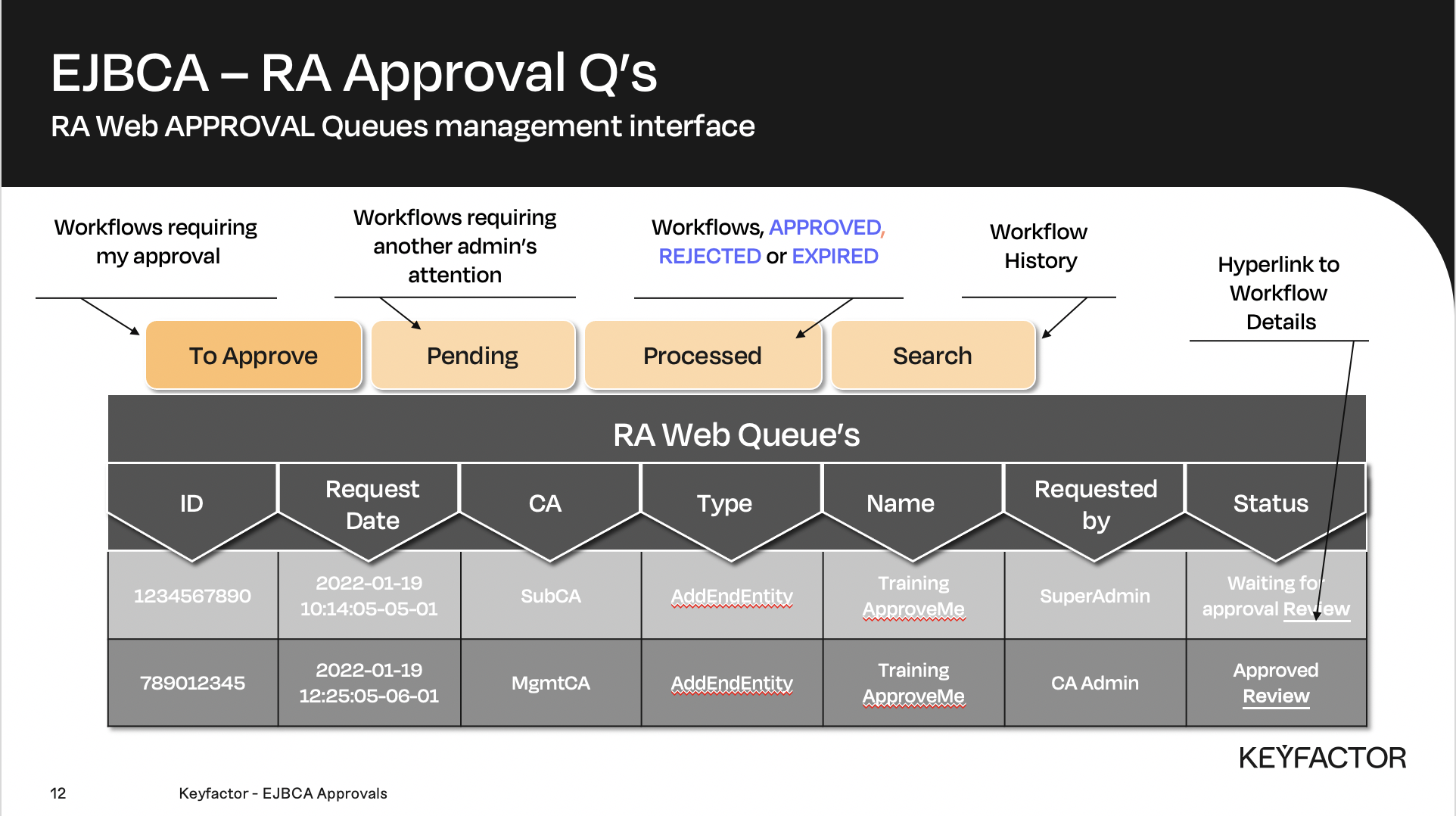
All workflows are placed on the queue for approval
Accumulative Approval Workflow Steps
Add the Approval Profile
Reminder you can visit the Accessing Your Environment page for details on how to connect to your Admin web portal
To add the approval profile:
Open a browser and access your Admin Web Portal. Ensure you are logged in as the SuperAdmin
Click Supervision Functions >> Approval Profiles
In the Name field, enter the value Approval Profile
Click Add
Edit the Profiles
To edit the profiles:
Open a browser and access your Admin Web Portal. Ensure you are logged in as the SuperAdmin
Click CA Functions >> Certificate Profiles
For the ApprovalCertificateProfile click Edit
Under the Approval Settings section, in the Add/Edit End Entity list, select Approval Profile
In the Available CAs list, select Sub CA
Click Save
Reminder you can visit the Accessing Your Environment page for details on how to connect to your RA web portal
Add End Entity
To add an end entity:
Open a browser and click RA Web, from the ribbon menu across the top of page
Click Enroll >> Make New Request
In the Certificate Type drop-down list, select ApprovalEndEntityProfile
In the Key-pair generation selection, select By the CA
In the CN, Common name field, enter training_Approval
In the Username field, enter training_Approval
In the Enrollment code field, enter foo123
In the Confirm enrollment code field, enter foo123
Click Confirm request
Close the browser
Approve End Entity

To log in as different administrators open a NEW PRIVATE Window in Firefox, or the browser you are working with. A private window allows you to login as a different user from the main browser window. To login using a PRIVATE window in Firefox, select New Private window from the “Burger menu” - upper right corner in Firefox. See the “Accessing your Environment” page for more details on launching a PRIVATE window and logging into RA Web.
To approve the end entity:
Open a browser and click RA Web, from the ribbon menu across the top of page.
Ensure you are logged in as the Training CA AdministratorClick Manage Requests
For the request with the name training_Approval, click enter Review
Review the request and click Approve
Close the browser
Issue Approved End Entity Certificate
To issue certificate to the approved end entity:
To review the request you can click Manage Requests and then the Processed tab. Click Review to get more details about the request. After reviewing you may issue the certificate using the procedure outlined below.
Open a browser and click RA Web, from the ribbon menu across the top of page.
Ensure you are logged in as the SuperAdminIn the Enroll menu, click Use Username
In the Username field, enter training_Approval
In the Enrollment code field, enter foo123
Click Check
Click Download PKCS#12
Save the file