%20(500%20x%20162%20px)(1).png)
Issue a certificate from the RA

The second part of this lab will issue certificates from the External RA Web.
First, the VA RA functionality will be configured and enabled for this VA instance.
Once enabled, a long hanging connection will be established to the RA instance.
When a certificate request is placed on the queue it will be picked up by the CA and a certificate operation will be started. In this lab, you will use the REMOTE VA/RA to issue a certificate from the CA.
Slide Reference
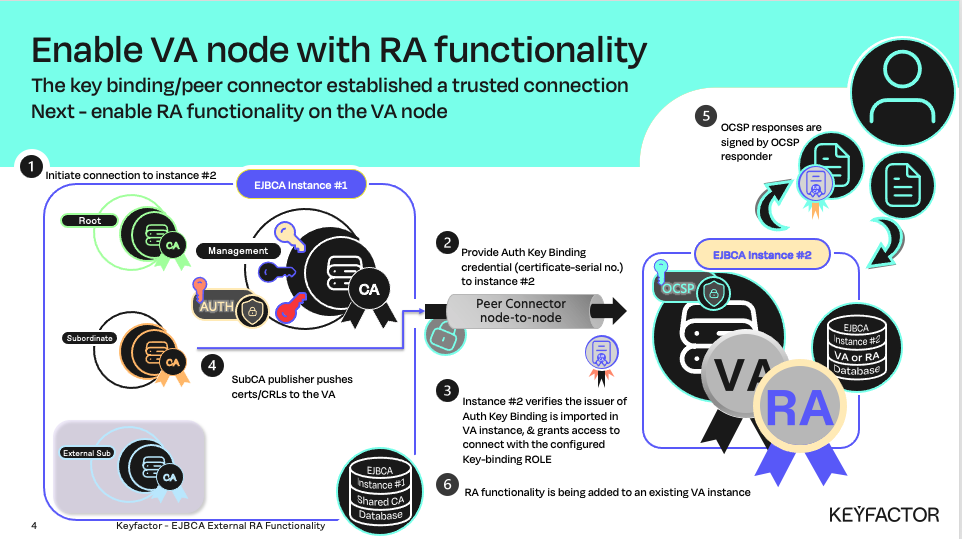
External VA, with RA Functionality enabled; external RA functionality can be enabled or not
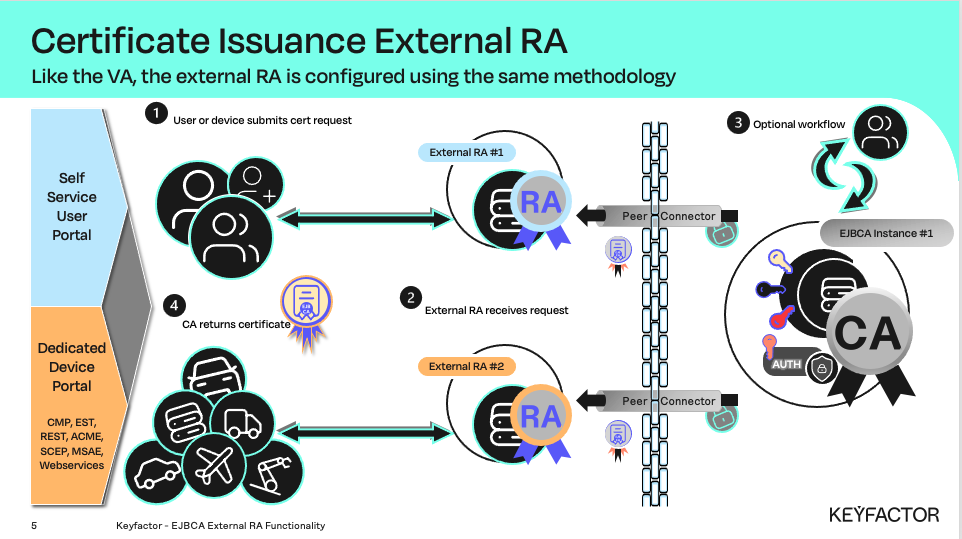
Multiple external RAs can be configured using a common trusted certificate or individual trusted certificates

Reminder you can visit the Accessing Your Environment page for details on how to connect to your RA web portal
Issue a Certificate
Open a browser and click RA Web, from the ribbon menu across the top of page from your VA instance.
Click Enroll >> Make New Request
Select TLSClientEndEntityProfile as Certificate type
Select Sub CA as CA
In the Key-pair generation selection, select By the CA
In the CN, Common Name field type RATest
In the Username field type RATest
In the Enrollment code field type foo123
In the Confirm enrollment code field type foo123
Click Download PKCS#12
Save the file