%20(500%20x%20162%20px)(1).png)
Supervisor Role
Introduction

EJBCA Roles - Create Supervisor role
Slide Deck: EJBCA Roles
Overview: This section creates the "Supervisor" role, and creates a new group for this user. Refer to the chart for an overview of permissions this role is assigned.
Slide Reference
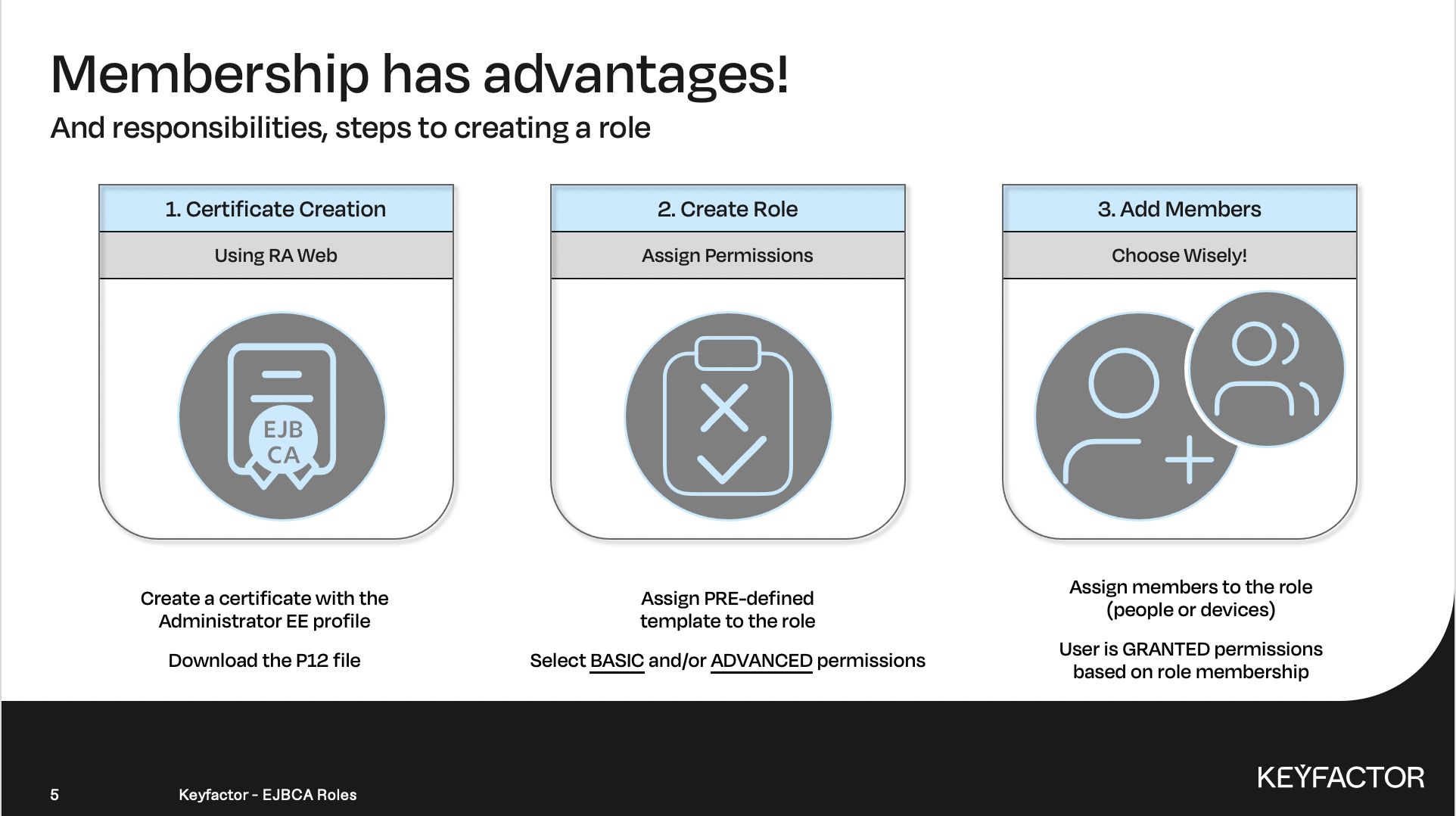
Create a certificate for the role
User is granted access based on role membership

Permission matrix by role
Reminder you can visit the Accessing Your Environment page for details on how to connect to your RA web portal
Create the Supervisor Certificate
Open a browser and click RA Web, from the ribbon menu across the top of page
Click Enroll >> Make New Request
In the Certificate Type drop-down list, select AdministratorEndEntityProfile
In the Key-pair generation selection, select By the CA
In the CN, Common name field, enter training_Supervisor
In the Username field, enter training_Supervisor
In the Enrollment code field, enter foo123
In the Confirm enrollment code field, enter foo123
Click Download PKCS#12
Save the file
Import the P12 into Firefox. See the previous section entitled "Refresher on importing certificates into Firefox" under "SuperAdmin Role" for the steps.
Create a Role
Open a browser and access your Admin Web Portal
Click System Functions >> Roles and Access Rules
Click Add
Enter Training Supervisor Role and click Add
Create the Access Rules
On Training Supervisor Role click Access Rules
In the Role Template list, select Supervisors
In the Authorized CAs list select Sub CA and ManagementCA
In the End Entity Profiles list, select TLSClientEndEntityProfile and TLSServerEndEntityProfile
Click Save
Click Back to Roles Management
Create the Matching Rule
On Training Supervisor Role click Members
In the Match With list, select X509: CN, Common name
In the CA list, select ManagementCA
In the Match value field, enter training_Supervisor
Click Add
Click Back to Roles Management